
A major shift has taken place in how we organize our iPhone Home Screens. We no longer settle for standard, uncustomizable app grids. Instead, we curate wallpapers, color-match app icons, and configure custom widgets to design cohesive digital spaces.
For fitness and health tracking, this trend has created a unique challenge: most step-counting and activity apps use heavy, high-contrast, pre-branded designs that clash with custom setups.
Here is how you can design a beautiful, functional, and highly aesthetic step tracking layout on your iPhone.
1. Focus on Glanceability Without the Clutter
The primary goal of a Home Screen widget is to give you instant information at a glance. However, too many details, charts, or heavy labels can quickly clutter a clean layout.
When choosing a steps widget style, look for minimalist designs: - The Progress Ring: A clean circular ring that fills up as you walk is the most aesthetic way to visualize your daily goal. It takes up minimal visual weight and looks like a native design element. - The Small Stats Block: A simple number paired with small typography matches standard iOS system fonts and integrates seamlessly alongside calendars or clock widgets. - Dynamic Chart Bars: If you like seeing your hourly progress, opt for a small bar chart widget that uses clean pastel colors rather than high-contrast primary colors.
2. Color-Match with Accent Themes
To make your step widget blend in, it should support custom accents. Instead of being locked into a single brand color (like bright orange or green), your step counter should match your current wallpaper or app theme.
With a highly customizable app like Steps Widget, you can switch between curated, harmonious colors:
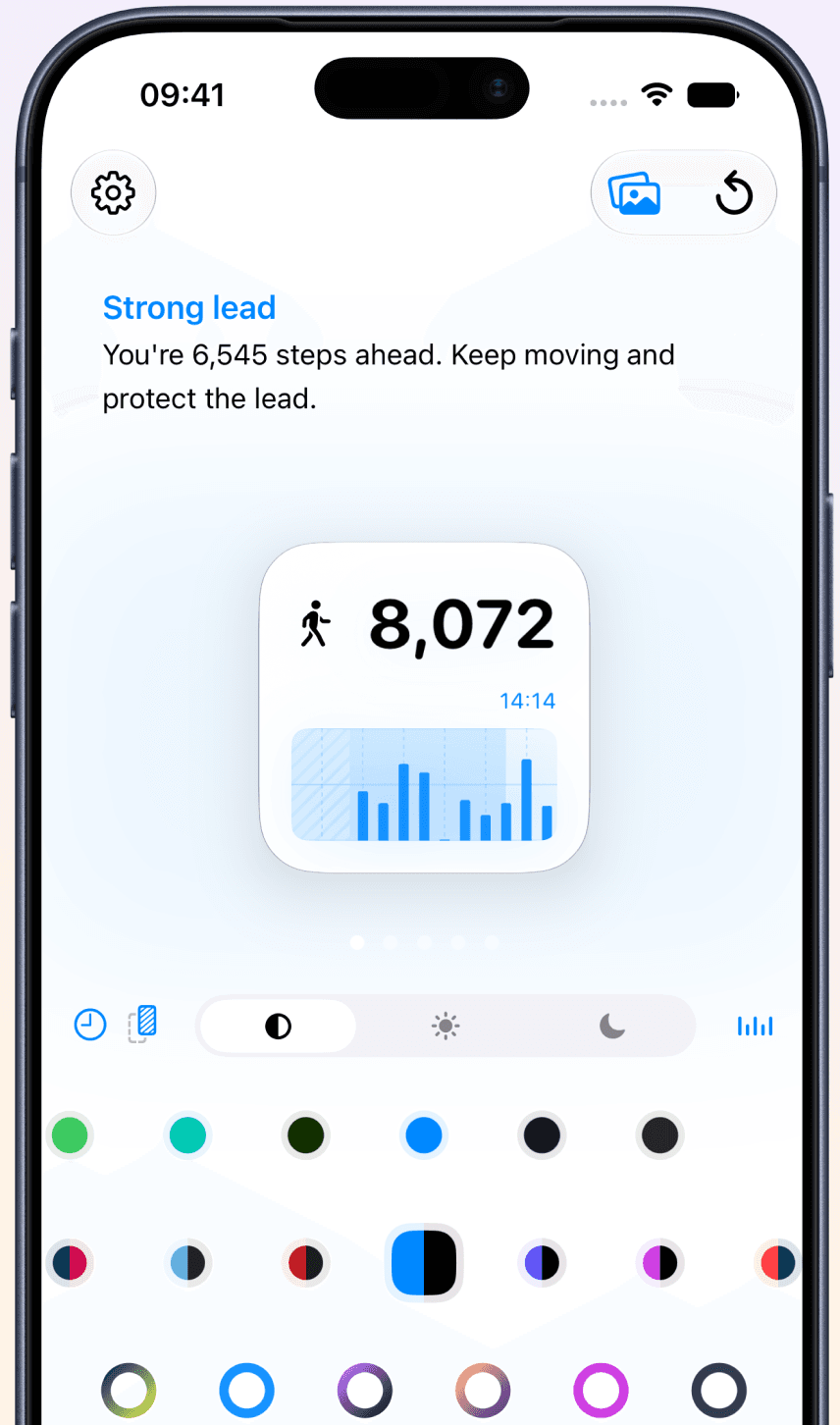
- Sky Blue (Cool/Minimal theme): Coordinates perfectly with beach scenes, sky photography, and cool dark mode setups.
- Automatic Light and Dark Modes: A high-end widget should automatically shift its background and borders when your iPhone switches to Dark Mode at sunset, maintaining readability without blinding you in the dark.
3. Utilize the Lock Screen for Zero-Click Tracking
iOS Lock Screen widgets are excellent for clean aesthetics because they are monochromatic and integrate directly below the clock.
Adding a compact, circular Lock Screen steps widget lets you track your steps instantly when you raise your phone, without needing to unlock the screen or scroll through your Home Screen. It keeps your overall layout minimal, leaving your main screen completely free for custom icon grids.

4. Leverage Background Motion Data (Battery-Friendly)
An aesthetic setup is only as good as its performance. Traditional step trackers that run background GPS to map walks drain battery quickly, causing your phone to overheat.
To keep your setup lightweight, make sure your widget app reads data directly from the iPhone's built-in Apple Health repository (which runs on the low-power motion coprocessor). This ensures your counts update accurately in the background without affecting your phone's performance.
Why a Designed Pedometer Helps You Walk More
Studies show that visibility leads to consistency. When your step counter is hidden inside a health app menu, it is easy to forget about your goal.
By integrating a beautiful, color-matched steps widget directly into your curated iOS Home Screen or Lock Screen, you keep your health goals top of mind. A simple glance at a glowing pink or sky-blue progress ring provides a gentle, encouraging nudge to close the gap and get moving—without disrupting the visual harmony of your device.
Try Steps Widget
Keep your daily steps visible on iPhone, Lock Screen, Home Screen, and Apple Watch with a private Apple Health step counter widget.
Back to home