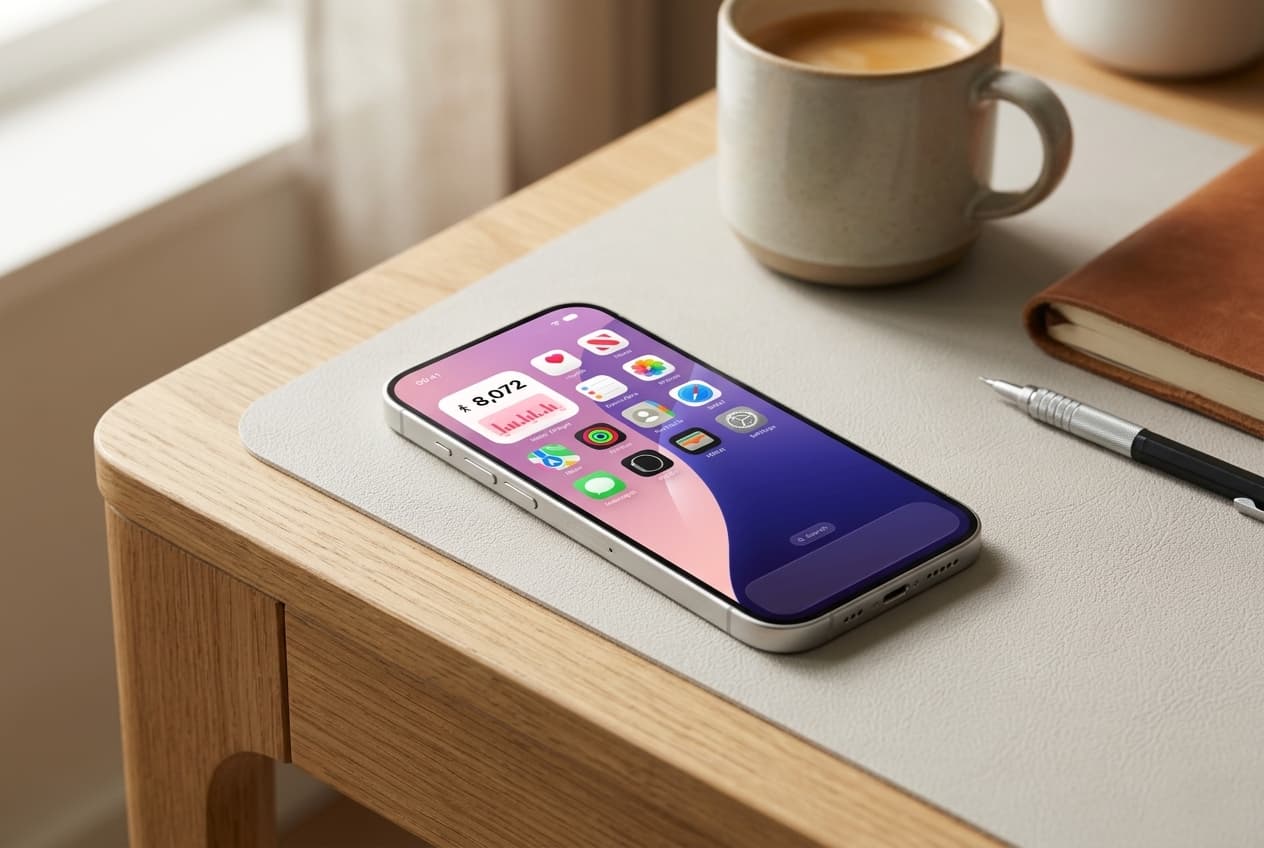
On July 13, 2026, Apple released the first public beta of iOS 27, opening its next big iPhone update to anyone willing to test unfinished software. If you have seen the headlines and wondered whether you should join in, this guide explains what a public beta actually is, what is new in iOS 27, how to install it, and the risks you should understand first.
The short version: public betas are a fun way to preview September's release two months early, but they run on pre-release software that can misbehave. If your daily step count and health history matter to you, there is one risk in particular you should know about before tapping install.
What is a public beta?
A beta is a pre-release version of software that is feature-complete but still being tested and polished. Apple runs two beta tracks each year. Developer betas arrive first, starting right after the WWDC keynote in June, and are aimed at app makers who need to prepare their apps. Public betas follow about a month later, once the software is stable enough for everyday users to try.
Public betas exist because millions of testers find bugs that Apple's internal teams never would. In exchange for early access, you accept occasional crashes, faster battery drain, apps that misbehave, and features that change or disappear between beta versions. The first iOS 27 public beta is identical to the third developer beta, so it has already had a month of stabilization.
What is new in iOS 27
iOS 27 is a substantial update, headlined by Siri AI, a far more capable assistant that can search the web, see what is on your screen, and take actions across apps on devices that support Apple Intelligence.
The finished version of iOS 27 ships to everyone in September 2026 alongside the new iPhones.
- Siri AI with a dedicated app for back-and-forth conversations.
- A refined Liquid Glass design, now with a slider to adjust transparency.
- Visual Intelligence built into the Camera app, including nutrition lookups and bill splitting.
- AI photo editing tools in Photos and automatic tab organization in Safari.
- Faster performance across the board, with quicker app launches and AirDrop transfers, even on older iPhones.
- A redesigned Screen Time experience and new child safety controls for parents.
How to install the iOS 27 public beta
Apple has made beta access much simpler than it used to be. There are no profiles to download, just a toggle in Settings.
The download is large, so connect to Wi-Fi and give it thirty minutes or so. After installation, everything on your iPhone stays in place, including your Apple Health history and your widgets.
- Back up your iPhone first, either to iCloud or to a computer. This matters more than any other step.
- Sign up for free at beta.apple.com with your Apple Account.
- Open Settings, tap General, then Software Update.
- Tap Beta Updates and select iOS 27 Public Beta.
- Return to Software Update, then download and install iOS 27.
The risk nobody mentions: your Health data
Most beta warnings focus on battery life and crashes. For step trackers, there is a bigger one: downgrading is destructive to your health history.
Apple Health stores your steps, workouts, and activity in a database that upgrades its format with each iOS version. If you install iOS 27 and later decide to go back to iOS 26, you cannot simply restore your latest backup, because backups made on iOS 27 do not restore to iOS 26. You would need your pre-beta backup, and every step recorded during your beta weeks would be gone. If you care about an unbroken step streak or long-term activity trends, install the beta on a spare device, or commit to staying on the beta track until the final September release, when your data carries forward automatically.
Do widgets work on the iOS 27 beta?
Widgets built on Apple's standard WidgetKit framework, including Steps Widget, continue to work on iOS 27. Your Home Screen, Lock Screen, and StandBy widgets survive the upgrade in place, and step counting itself is handled by the iPhone's motion hardware, which the beta does not change.
That said, betas can temporarily affect widget refresh timing, and early betas sometimes reset permissions. If your steps widget shows zero after upgrading, check that Health access is still granted in the Health app under Privacy, then Apps. A restart resolves most remaining refresh quirks.
So should you install it?
If you have a secondary iPhone, the public beta is an easy yes. It is the most interesting iOS release in years, and beta 1 is reportedly stable by beta standards.
On your main iPhone, the calculus is different. You are trading two months of early access for reduced reliability and a locked-in upgrade path if you want to keep your Health history intact. If your step data matters to you, waiting for the polished September release costs you nothing. Either way, keeping your daily steps visible helps you spot any tracking hiccups immediately. Steps Widget shows your live Apple Health step count on your Home Screen, Lock Screen, and in StandBy, on iOS 26 and the iOS 27 beta alike. Download Steps Widget and keep your streak in sight, whichever version you run.
Try Steps Widget
Keep your daily steps visible on iPhone, Lock Screen, Home Screen, and Apple Watch with a private Apple Health step counter widget.
Back to home