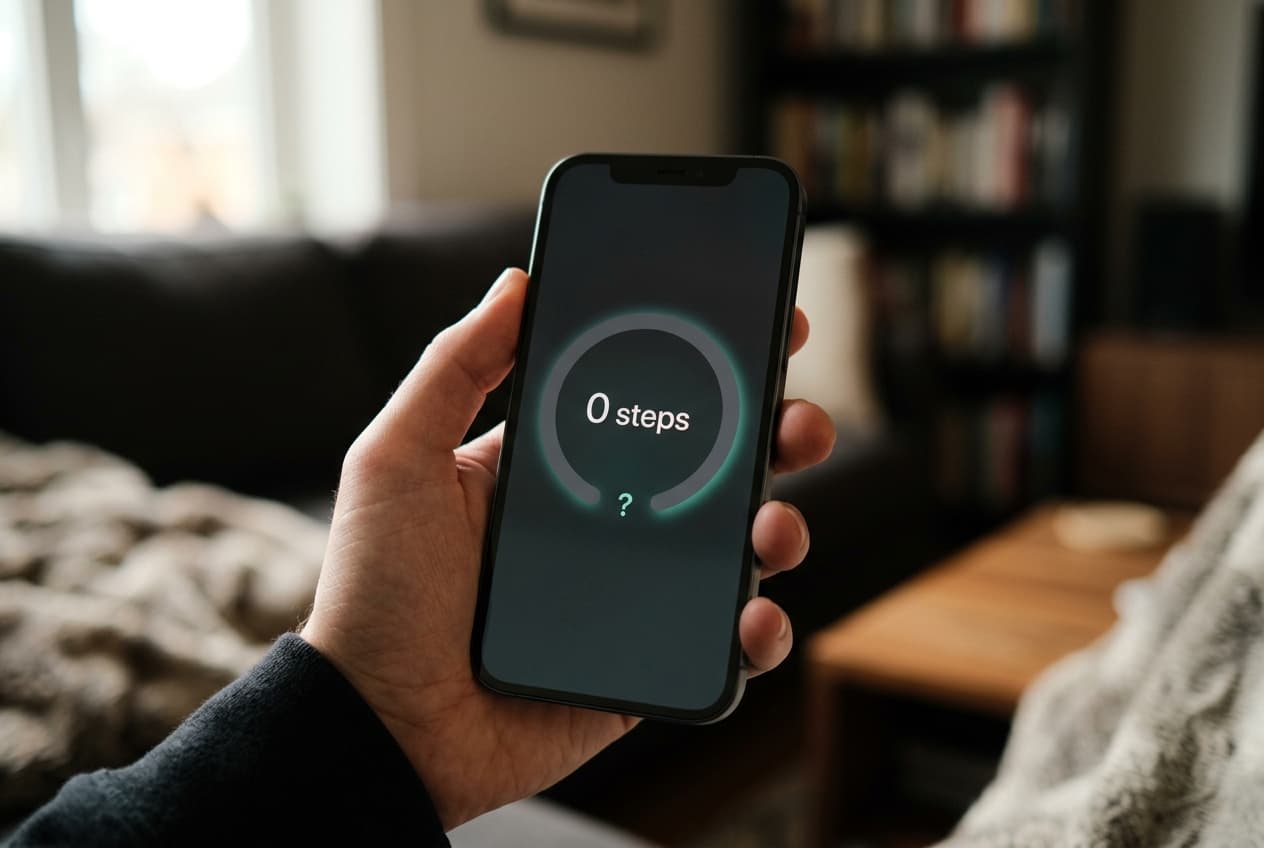
You walked all morning, checked your phone, and the step count reads zero. It is a common frustration, and in almost every case the fix takes less than five minutes.
Your iPhone counts steps using a built-in motion coprocessor, and that hardware very rarely fails. When steps stop appearing, the cause is nearly always a settings issue: a disabled privacy toggle, a revoked Health permission, or a data source conflict. This guide walks through the seven most common reasons your iPhone is not counting steps, in the order you should check them.
1. Fitness Tracking is turned off in Privacy settings
The most common culprit is a single switch buried in your privacy settings. If Fitness Tracking is off, your iPhone stops recording motion data entirely, and no app can count your steps.
After enabling this, take a short walk with your phone and check Apple Health. Steps should start appearing within a few minutes.
- Open Settings and tap Privacy & Security.
- Tap Motion & Fitness.
- Turn on Fitness Tracking.
- Below it, make sure Health is also allowed to access motion data.
2. Apple Health does not have motion access
Even with Fitness Tracking on, the Health app needs its own permission to read motion data. If Health is toggled off in the Motion & Fitness list, your steps are being detected but never saved.
While you are in Settings, Privacy & Security, Motion & Fitness, review every app in the list. Any step counter app you use, including Steps Widget, reads its numbers from Apple Health, so Health must be enabled for the whole chain to work.
3. Your phone is not with you when you walk
The iPhone can only count steps it physically experiences. If your phone sits on your desk while you pace the office, those steps are lost.
This sounds obvious, but it is the top reason step counts feel too low rather than broken. Keep your phone in a pocket or bag during the day, or pair an Apple Watch, which records steps independently and syncs them to Health.
4. A widget shows zero but Apple Health has data
If the Health app shows the correct count but your Home Screen widget reads zero, the problem is the widget's Health permission, not step tracking itself.
Once permission is granted, the widget refreshes with your real count. iOS also refreshes widgets on its own schedule, so a small delay of a few minutes is normal and not a sign that tracking is broken.
- Open the Health app and tap your profile picture.
- Tap Privacy, then Apps.
- Select your steps app, such as Steps Widget.
- Turn on read access for Steps.
5. Duplicate or conflicting data sources
If you use an Apple Watch or a third-party fitness app alongside your iPhone, Apple Health merges their data. When source priority is misconfigured, your total can look wrong or stuck.
Open Health, tap Browse, then Steps, then scroll to Data Sources & Access. Drag your preferred device to the top of the list. Health automatically removes overlapping steps between sources, so you will not get double counts, but the top source wins when readings conflict.
6. Low Power Mode and background restrictions
Low Power Mode reduces background activity, which can delay when steps appear in Health and in widgets. The steps are still recorded by the motion chip, but syncing and widget refreshes slow down.
If your counts consistently lag, check whether Low Power Mode is on in Settings, Battery. Also confirm Background App Refresh is enabled for your steps app in Settings, General, Background App Refresh.
7. A restart fixes stuck sensors
If everything above checks out and steps still are not recording, restart your iPhone. A restart clears temporary glitches in the motion coprocessor pipeline and resolves most remaining cases. If steps still do not appear after a restart and a test walk, check for a pending iOS update in Settings, General, Software Update, since motion tracking bugs are occasionally fixed in point releases.
Keep your step count visible so problems surface early
Most people discover broken step tracking days after it happens, because their count is hidden inside the Health app. The easiest safeguard is putting your steps where you already look.
Steps Widget displays your live Apple Health step count on your Home Screen, Lock Screen, and in StandBy mode. If tracking ever stops, you will notice the frozen number the same hour instead of the same week. Setup takes under a minute, requires no account, and your data never leaves your device. Download Steps Widget and keep your step count in sight.
Try Steps Widget
Keep your daily steps visible on iPhone, Lock Screen, Home Screen, and Apple Watch with a private Apple Health step counter widget.
Back to home