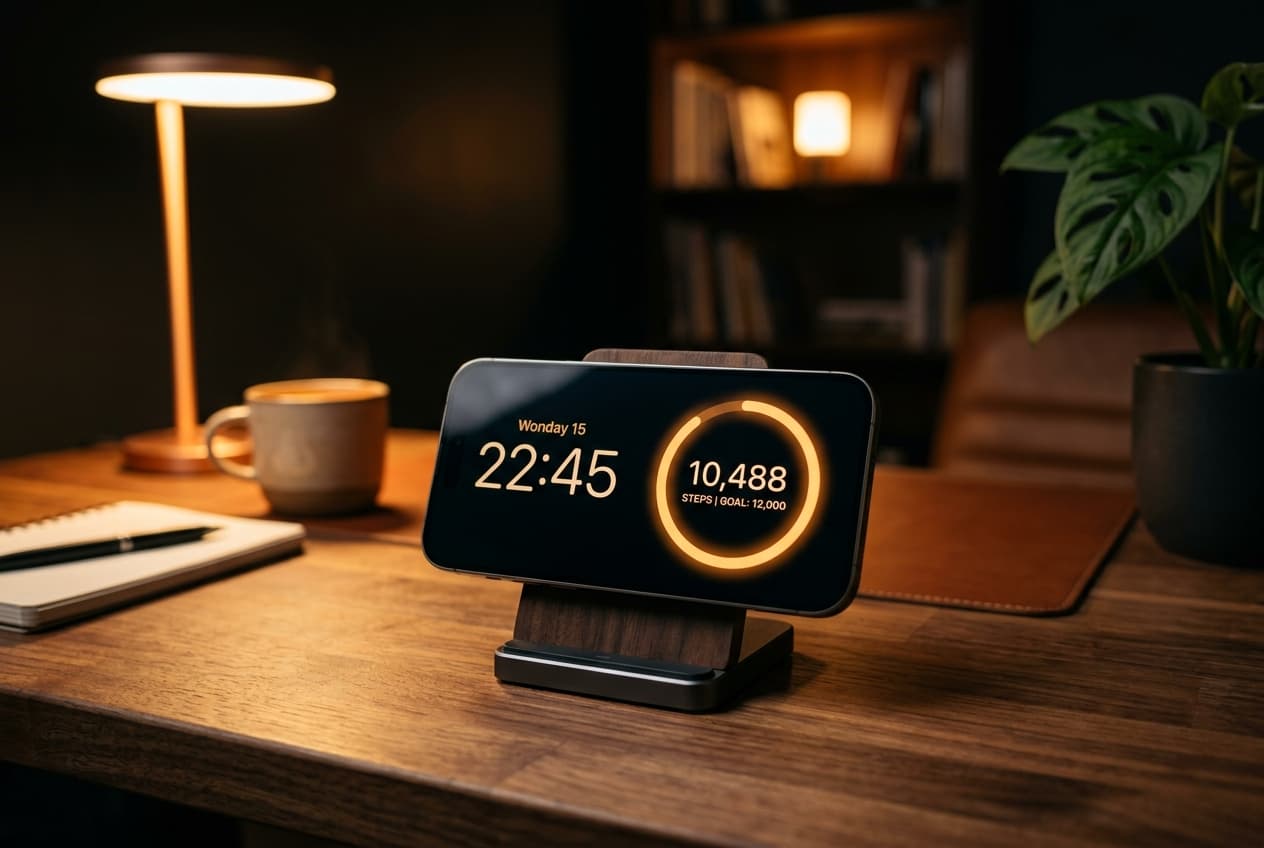
iOS StandBy mode transforms your iPhone into a smart glanceable display when it is charging on its side. It is perfect for displaying clocks, weather forecasts, and calendar events while sitting at your desk or sleeping on your nightstand.
However, if you want to use StandBy mode to keep an eye on your daily walking progress, you might run into a frustrating limitation: Apple's built-in Health and Fitness apps do not offer a step counter widget for the StandBy interface.
Fortunately, you can easily show your steps in iOS StandBy mode using a third-party app. Here is a step-by-step guide to setting up a custom, aesthetic pedometer on your locked screen.
Why Native Apple Apps Fall Short in StandBy Mode
While Apple Health stores all of your motion data, Apple's own widgets focus on activity rings (move, exercise, stand) and trends rather than a plain step number. If you simply want to see your raw step count (for example, "4,250 steps") at a glance, Apple's native widgets cannot show that on the StandBy screen.
To bridge this gap, you need a third-party widget app like Steps Widget that reads your step data from Apple Health and offers small-size widgets, which is the exact format the StandBy interface displays.
Step 1: Install Steps Widget and enable permissions
Before you begin, make sure your iPhone is running iOS 17 or later, as StandBy mode is not available on older operating system versions. Then install Steps Widget on your iPhone if you haven't already.
- Open the app once after installing.
- When prompted, grant permission for the app to read your step count from Apple Health.
- Your data stays completely private and local on your device.
Step 2: Activate StandBy mode
StandBy is on by default in iOS 17 and later, but it is worth confirming before you set up widgets.
One hardware note: iPhones with an always-on display, such as the Pro models from iPhone 14 Pro onward, keep StandBy visible continuously. On other models the screen sleeps to save power, and a quick tap wakes it back up.
- Open your iPhone Settings and tap StandBy, then make sure the toggle is on.
- Connect your iPhone to a charger (a MagSafe stand, Qi wireless charger, or a standard USB-C or Lightning cable all work).
- Lock your iPhone and place it in landscape (horizontal) orientation.
- After a moment, the StandBy screen will illuminate automatically.
Step 3: Add Steps Widget to your StandBy display
StandBy's leftmost view shows two stacks of widgets side by side. You can add your step counter to either stack.
You can also enable Smart Rotate while editing, which lets iOS surface the steps widget automatically at relevant times, or turn it off to keep your step count pinned in place.
- With StandBy active, long-press (tap and hold) the left or right widget stack.
- Authenticate with Face ID or enter your passcode if prompted.
- Tap the "+" (plus) button in the top-left corner of the editing screen.
- Scroll the app list or use the search bar to find Steps Widget.
- Swipe to choose your preferred style, such as the minimalist number or the progress ring.
- Tap Add Widget, then tap Done in the top-right corner to save your layout.
Keeping Steps Glanceable on Your Desk
Having your step counter visible in StandBy mode is especially helpful for office and remote workers.
Instead of picking up your phone, unlocking it, and navigating to a health app—which often leads to getting distracted by social media or email—you can see your movement progress with a simple glance to the side.
Because Steps Widget offers curated, color-matched themes (such as Sky Blue, Accent Pink, or automatic Dark Mode matching), your step counter can blend seamlessly with your desk decor and wallpaper colors, even when your phone is locked and charging.
Try Steps Widget
Keep your daily steps visible on iPhone, Lock Screen, Home Screen, and Apple Watch with a private Apple Health step counter widget.
Back to home