
Apple Watch does not display your step count on the watch face by default. The built-in Activity app tracks steps accurately in the background but only surfaces Move, Exercise, and Stand goals through its native complications. To show your step count on the watch face, you need a third-party app that reads your Apple Health step data and provides a watch face complication.
Here's the basic process:
- Download a step counter app from the App Store (such as Duffy, StepsApp, or Steps Widget)
- Install the app on both your iPhone and Apple Watch
- Grant the app permission to read Apple Health data
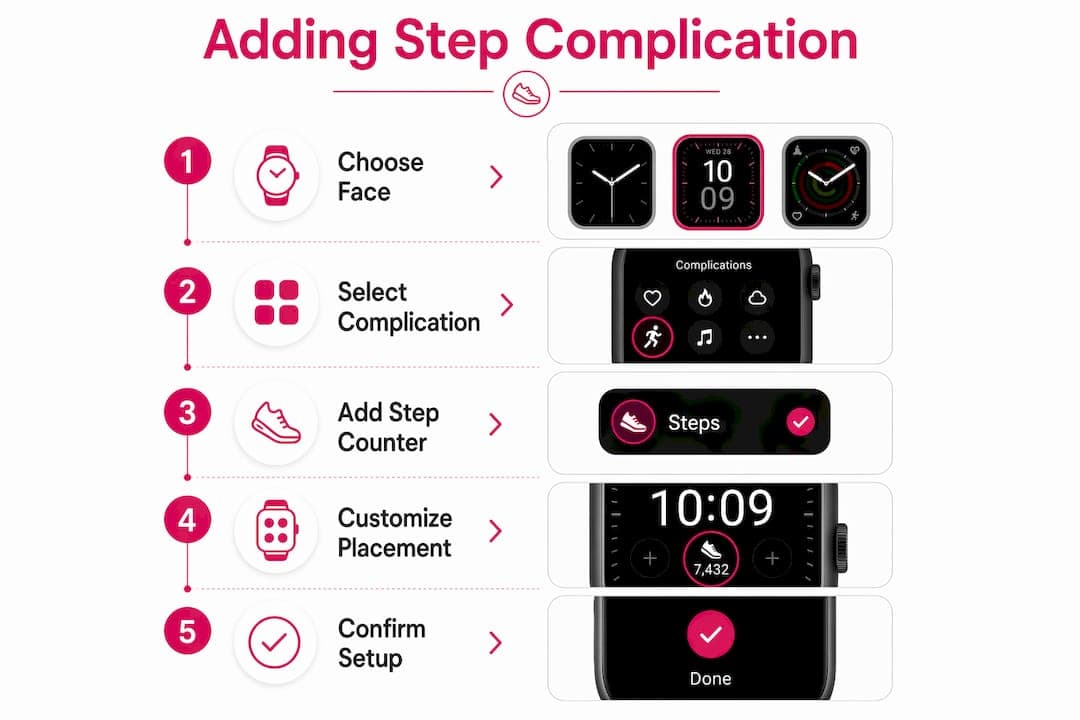
- Edit your watch face and add the app's step complication to an open slot
- Choose your preferred complication style and save
Once set up, your step count appears directly on your watch face, updated throughout the day. Apple Watch’s built-in Activity complication only displays Move, Exercise, and Stand goals—step counts cannot be shown natively and require a third-party app complication.
How to install a step counter app on your iPhone and Apple Watch
Getting the right app installed correctly is the foundation. Follow these steps to get everything in place.
- Search the App Store on your iPhone. Open the App Store and search for a step counter app. Duffy, StepsApp, and Steps Widget are all solid options with Apple Watch complications.
- Download and open the app on your iPhone. After installing, open the app immediately. Most apps prompt you to grant Health data access during their first launch.
- Allow Health permissions. When the app asks for permission to read Apple Health data, tap "Allow All" or select Steps specifically. Without this, the complication will show nothing.
- Enable automatic Apple Watch installation. On your iPhone, open the Watch app, go to the My Watch tab, scroll to Available Apps, and toggle on the step counter app. Alternatively, go to Settings on your Apple Watch, tap App Store, and turn on Automatic Downloads.
- Open the app on your Apple Watch. Once installed, open it directly on your watch. This initial launch completes the sync and activates the complication so it appears in your watch face editor.
Pro Tip: If the app does not appear in your watch face complication list, open the Watch app on your iPhone, go to Available Apps, and confirm the app is installed on your watch. This is the most common fix for a missing complication.
How to add a step complication to your Apple Watch face
With your app installed, editing the watch face takes about two minutes. The process works directly on your Apple Watch or through the Watch app on your iPhone.
On your Apple Watch:
- Press and hold your current watch face until it zooms out.
- Tap Edit.
- Swipe left until you reach the Complications screen.
- Tap the complication slot where you want your step count to appear.
- Scroll through the list and select your step counter app.
- Choose a complication style (ring, number, bar chart, etc.).
- Press the Digital Crown to save your changes.
On your iPhone via the Watch app:
- Open the Watch app and tap the My Watch tab.
- Tap the watch face you want to edit.
- Under Complications, select the slot you want to use.
- Scroll to your step counter app and pick a complication style.
- Tap the back button to save.
Watch face styles like Modular and Infograph offer more and larger complication slots, which gives you better placement options for step data.
Pro Tip: If you want your step count always visible, choose a watch face with a large center or top complication slot. Modular is particularly good for this since it dedicates significant screen space to complications.

Popular apps that display steps on your Apple Watch face
Three apps stand out for their complication quality, privacy approach, and customization options.
- Duffy focuses on step counting with a clean, minimal complication style. Setup is quick, and it reads directly from Apple Health, so your data stays consistent across devices. The complication displays your current step count and daily goal progress.
- StepsApp offers more visual variety, including ring-style and numeric complications in multiple sizes. It supports Apple Watch complications across several watch face types and lets you set custom daily step goals. The free tier covers the basics well.
- Steps Widget by Crazylazy reads your Apple Health step data locally on your device, with no social sharing, no leaderboards, and no account required. It offers multiple complication styles including progress rings and minimal numeric displays, plus widget support for your iPhone Home Screen and Lock Screen.
| Feature | Duffy | StepsApp | Steps Widget |
|---|---|---|---|
| App setup process | Simple, Health permission only | Guided setup with goal config | Quick install, local Health access |
| Complication styles | Minimal numeric | Rings, numeric, multiple sizes | Rings, bars, minimal, detailed |
| Privacy focus | Local Health data | Local Health data | Local only, no account needed |
| iPhone widget support | Limited | Yes | Yes, Home Screen and Lock Screen |
| Free tier available | Yes | Yes | Yes |
All three apps sync with Apple Health, so your step count stays accurate whether you check it on your watch face or inside the Health app.
How step data syncs between your Apple Watch and iPhone Health app
Your Apple Watch collects step data continuously and syncs it to the iPhone Health app automatically over Bluetooth. You do not need to do anything manually. When your watch and iPhone are near each other, the sync happens in the background throughout the day.
Third-party step counter apps read this data directly from Apple Health rather than collecting it independently. That means the step count you see on your watch face complication matches what you see inside the Health app. One thing to keep in mind: third-party complications may update with a slight delay due to Apple's background refresh limits, so the number on your watch face might lag a few minutes behind your actual step count.

To check your steps inside the Health app directly, open Health on your iPhone, tap Browse, then Activity, then Steps.
Tips to keep your battery healthy when using step complications
Adding a complication does draw slightly more power since the watch face refreshes periodically. A few adjustments help offset that.
- Use a simpler watch face. Faces with fewer complications and animations use less power overall. Modular is a good balance between functionality and efficiency.
- Reduce wake duration. In the Watch app on your iPhone, go to General, then Wake Screen, and lower the wake duration to 15 seconds.
- Turn off Always On Display if you have it. Always On Display keeps the screen active continuously, which is the single largest battery drain on supported models. Disabling it extends battery life noticeably.
- Limit background app refresh. In the Watch app, go to General, then Background App Refresh, and turn it off for apps you do not use actively. Your step complication will still update on its normal schedule.
- Charge during low-activity windows. A quick charge during lunch or a meeting keeps you topped up without interrupting your step tracking during active hours.
Steps Widget by Crazylazy fits this workflow well
If you want a step count complication that stays private and looks good without a complicated setup, Steps Widget by Crazylazy is worth a look. It reads your Apple Health data locally, so nothing leaves your device. There are no social feeds, no challenges, and no subscription required to get the core experience.
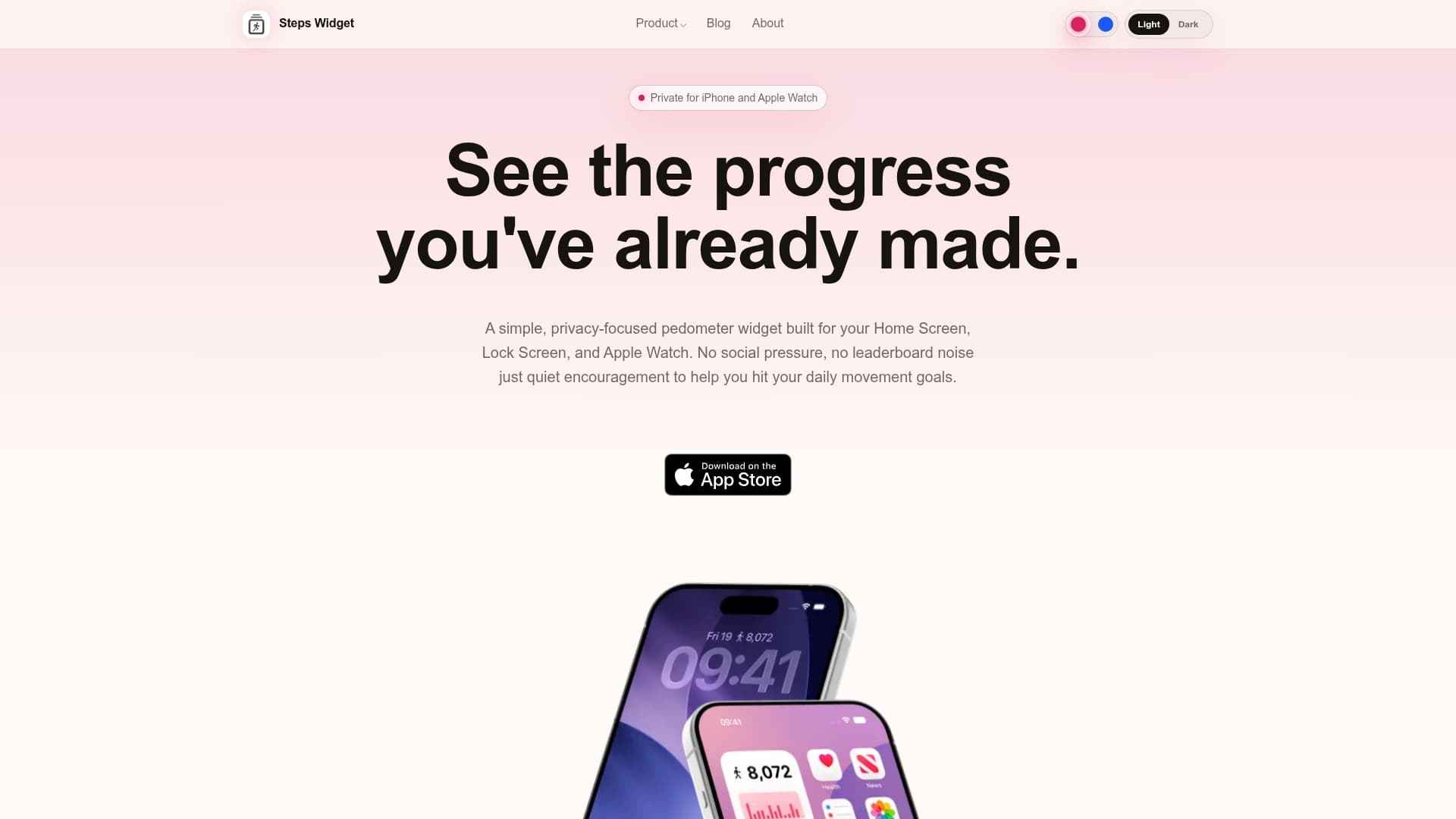
You get multiple complication styles for your Apple Watch face, plus widget options for your iPhone Home Screen and Lock Screen, so your step count is visible wherever you check. Download Steps Widget from the App Store and add the complication to your watch face in under five minutes.
Key Takeaways
Displaying steps on your Apple Watch face requires a third-party app that reads Apple Health data and provides a watch face complication, since Apple's native Activity app does not include a step count complication.
| Point | Details |
|---|---|
| No native step complication | Apple Watch Activity complications show Move, Exercise, and Stand goals only, not step counts. Displaying your steps on the watch face always requires a third-party complication. |
| Third-party app required | Apps like Duffy, StepsApp, and Steps Widget provide step complications that sync with Apple Health. |
| Complication setup | Press and hold your watch face, tap Edit, swipe to Complications, select a slot, and choose your app. |
| Watch face choice matters | Modular and Infograph faces offer more and larger complication slots for better step count display. |
| Steps Widget by Crazylazy | Reads Apple Health data locally with no account needed, covering Apple Watch, Home Screen, and Lock Screen. |
Recommended
Try Steps Widget
Keep your daily steps visible on iPhone, Lock Screen, Home Screen, and Apple Watch with a private Apple Health step counter widget.
Back to home