Reminder messages
Describe how your reminders should sound and Apple Intelligence rewrites them on device, in your language, with a live preview in Settings.
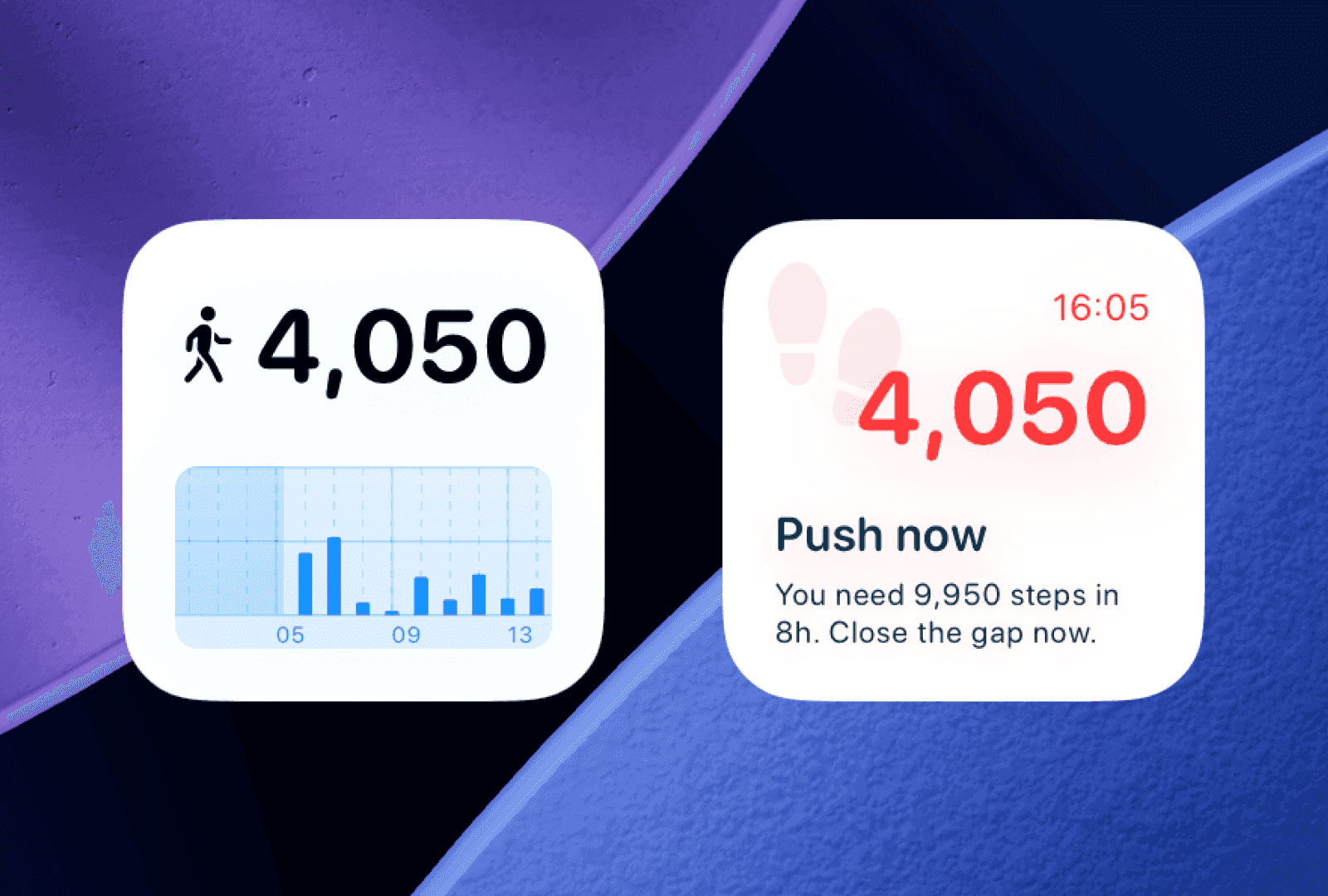
The wording of each reminder is yours to set: describe the tone you want in plain language, and Apple Intelligence rewrites the reminder on your device to match.
Setting a tone
In Settings, under the Goal Reminder section, there is a text field: How should reminder messages sound?
Write whatever you like. Steps also offers six one-tap suggestions:
- Encouraging and upbeat
- Short and direct
- Gentle and supportive
- Coach-like and energetic
- Playful and fun
- Mindful and calm
These are starting points rather than a fixed list, since the field accepts any text. Leave it empty and the default instruction is encouraging and positive.
The preview
Directly above the field, Preview shows the title and body your current step count would actually produce, rewritten in your chosen tone. Change the tone and the preview regenerates.
The preview uses the same pipeline as a real reminder: the same projection, message tier, and rewrite. What it shows is what would arrive on your Lock Screen.
What the rewrite does and does not change
Steps builds the message first — from your projection, your remaining steps, and the hours left — and then asks the model to restyle it while keeping the meaning. The instruction is literally "Rewrite this reminder. Keep the meaning. Follow this style."
The numbers are preserved. A rewrite changes how "1,900 steps in 3h — a short walk gets you there" reads, but it does not change the step count or the time remaining.
Note: The rewrite runs on Apple's on-device foundation model. Your step counts, your goal, and your tone instruction are not sent to a server — not ours, and not Apple's.
Requirements
The field only appears when on-device rewriting is actually available, which needs:
- iOS 26 or later
- Apple Intelligence enabled on the device
- A supported language among your preferred languages
If any of those is missing, you get the templated messages instead. They carry the same numbers and are simply not restyled.
Which language do reminders use?
Steps picks the first of your preferred languages that the on-device model supports, and generates in that. The templated fallback copy is localized too, so reminders are in your language either way.
Choosing the alert itself
Tone is the wording. How intrusive the alert is comes from iOS, and it is worth setting deliberately:
| Want | Where |
|---|---|
| Silent but visible | Settings › Notifications › Steps Widget › Sounds, off |
| A wrist tap instead of a sound | Wear your Apple Watch — see Apple Watch |
| Banner style, persistent or temporary | Settings › Notifications › Steps Widget |
| Never during a Focus | Leave Steps off that Focus's allowed list |
Reminders are delivered with the default notification sound. One iOS setting to check: if Steps Widget is included in your Scheduled Summary, reminders are held and delivered in a batch, so a reminder about your afternoon can arrive at 6pm. See Reminders not arriving.
Can I have different tones at different times of day?
Not from the app, which has one tone at a time. The closest equivalent is a Focus mode covering the hours you want silence.
What to read next
- How goal reminders work — where the message comes from.
- Reminder timing and devices — when it fires and from which device.
- Reminders not arriving — the fix list.
Was this page helpful?
Steps Widget projects your end-of-day step total on device and reminds you only when you are heading for a miss — with your Apple Health count on every screen you already look at.
See how it works