Apple Watch
The standalone Watch app, its three complication styles, the settings you can change from the wrist, and why the Watch is the best device to send reminders.
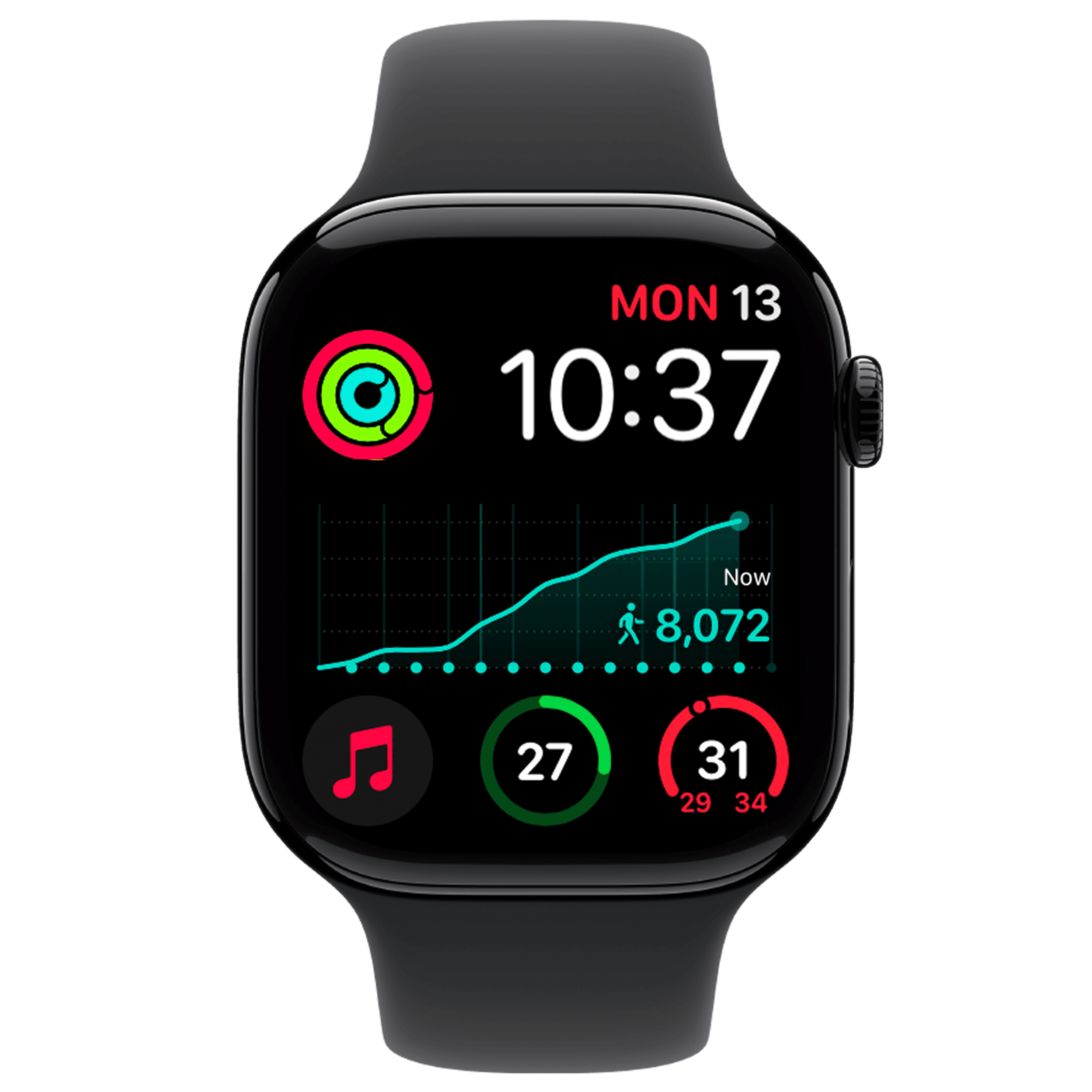
Steps runs on Apple Watch as a real app with its own settings, its own complication styles, and its own reminder delivery — not as a remote control for your phone. Requires watchOS 11.6 or later.
Installing
Usually automatic: if the app installed on your iPhone, watchOS installs the Watch app too.
To check or install manually, open the Watch app on iPhone, go to My Watch, scroll to Available Apps, and tap Install next to Steps Widget. To make future installs automatic, open Settings on the Watch, tap App Store, and turn on Automatic Downloads.
The app's own How Step Update screen has an Open Watch App button that jumps straight there when the Watch app is not yet installed.
Complications
Add one so your progress is on the face you already raise your wrist to check:
- Touch and hold the watch face, tap Edit.
- Swipe to Complications.
- Tap a slot and choose Steps Widget.
- Press the Digital Crown, then tap the face to select it.
Three styles are available, each with its own saved look:
| Style | Slot | Best for |
|---|---|---|
| Circular | Circular / corner slots | Count with a progress ring |
| Inline | Single-line slots | A number alongside the date |
| Rectangular | Large slots | The most detail a face can carry |
Pick Circular or Rectangular if you want the ring — that is what makes progress readable in a glance rather than a calculation.
On Rectangular, set the chart to Line Chart. It plots your running total as one climbing curve, and that slope is the most information a wrist-sized strip can carry — a rising line means you are moving, a flat one means you are not. See Line Chart: the momentum view.
Faces each keep their own complications, so a work face with the ring prominent and an evening face without it is a reasonable setup. Switching faces switches whether you are being measured.
Alongside the Activity rings
They answer different questions and coexist happily. The Activity rings track Move, Exercise, and Stand as Apple defines them — and Stand credit is awarded for standing up for a minute, which you can earn without going anywhere. A step count against your own goal measures whether you walked.
Steps reads your stand hours too, and the Rectangular layout is where they appear: a row of dots along the bottom of the chart, one per hour, brighter for the hours you stood. Stand hours are a Watch measurement, so on an iPhone alone the row never lights.
Settings on the wrist
The Watch app is not read-only. From the wrist you can change:
- Daily Goal
- Last 24 Hour and Day Ends At — see the step window
- Motion Sensor
- Goal Reminder
- Complication style, chart type, and timestamp format for each accessory type
- The Customization purchase
Everything syncs with your iPhone. Buy on the Watch and it applies to the phone.
Reminders on your wrist
The Watch is usually the best device to send your goal reminders. A wrist tap arrives whether or not your phone is nearby, and in a meeting or a shared office it registers without a sound or a screen lighting up.
You will not get duplicate reminders across devices. Steps elects a single sending device from iCloud heartbeats, and when the Watch is elected the iPhone stays quiet. Settings shows which device is currently sending. Details in Reminder timing and devices.
Note: The Watch cannot fetch weather data, so if Local Sunset is on it reads the sunset hour the iPhone last saved to iCloud. Reminder rewriting with Apple Intelligence is iPhone-only; Watch reminders use the templated wording.
Health access on the Watch
The Watch app requests Health access itself, and shows Health Access Required with an Authorize button if it does not have it. Granting it on the phone does not automatically grant it on the wrist.
Do I need an Apple Watch?
No, but it is the recommended setup. iPhone counts steps with its own motion coprocessor, and everything — the projection, the reminders, widgets on every iPhone surface, Insight — works with no Watch at all. A Watch adds the walks your phone missed, reminders as a wrist tap, and the stand dots.
Why do my Watch and iPhone show different numbers?
Because they have not synced yet, or because they genuinely measured different things. Steps taken with the phone on your desk exist only in the Watch's count.
Apple Health merges and de-duplicates the two, so the daily total is deliberately not the sum. Bring the devices near each other with Bluetooth on and the totals converge. The Live Activity shows the two contributions separately if you want to see the split.
Does the Watch app drain the battery?
It should not be noticeable. It reads step data watchOS is already recording for its own Activity tracking rather than running its own sensor loop, and it uses no GPS and no network. Check the Battery screen on the Watch to confirm on your own device.
What to read next
- Reminder timing and devices — which device sends.
- Styling widgets — the palettes, shared with iPhone.
- The step window — settings you can change from the wrist.
Was this page helpful?
Steps Widget projects your end-of-day step total on device and reminds you only when you are heading for a miss — with your Apple Health count on every screen you already look at.
See how it works