StandBy and Live Activity
Turn a charging iPhone into a desk step display, and put a live-updating count in the Dynamic Island and on the Lock Screen while you walk.
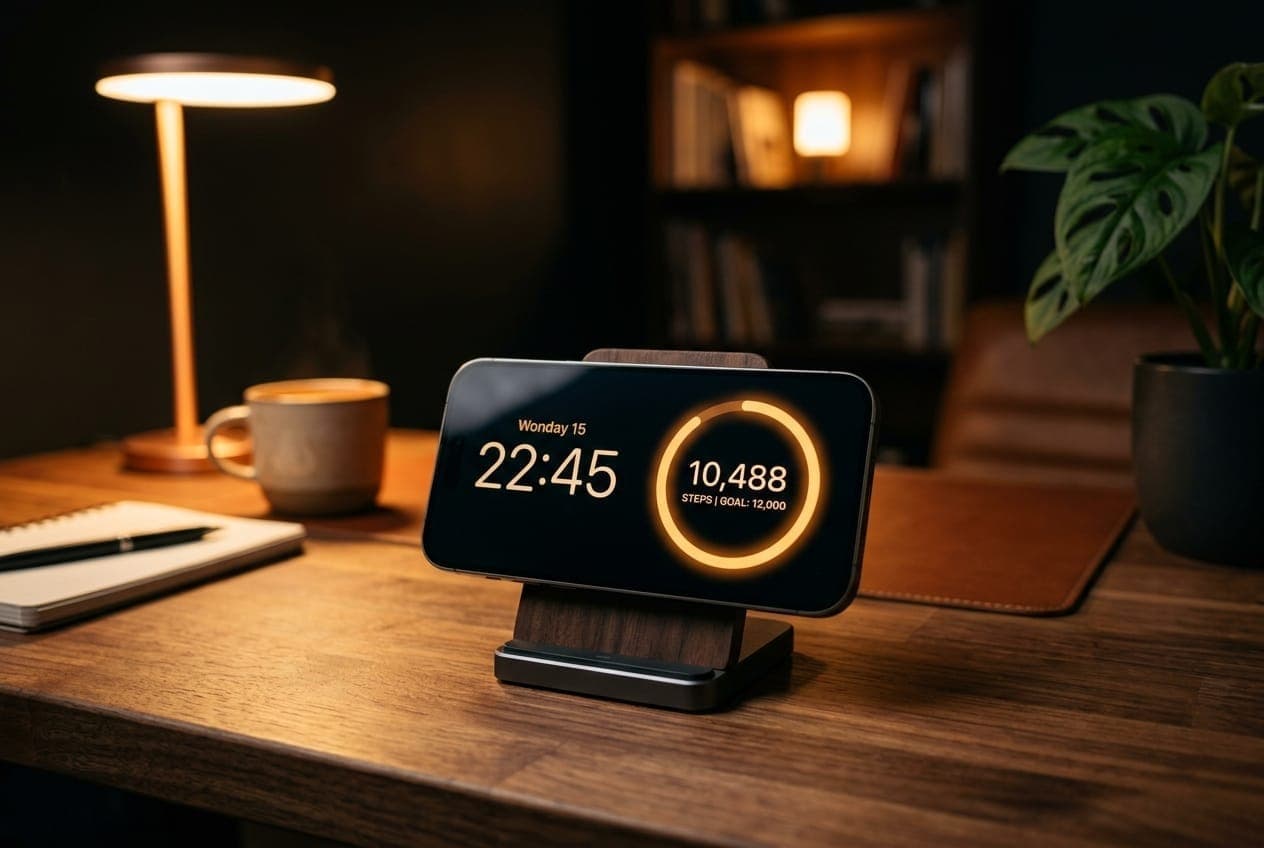
Two surfaces for two different situations: StandBy for a phone charging on your desk, and a Live Activity for a walk in progress.
StandBy
StandBy turns a charging iPhone on its side into a full-screen display. On a desk it keeps your step count in view without you having to open anything.
To enable it:
- Settings › StandBy, toggle on.
- Connect the iPhone to power.
- Place it on its side, landscape, and leave it still.
All three conditions are required: charging, landscape, stationary. A phone in your hand will not enter StandBy.
To add Steps to the widget panel:
- With StandBy active, swipe to the leftmost panel.
- Touch and hold the widget stack until it enters edit mode, authenticating if asked.
- Tap +, choose a Steps widget, add it.
- Tap Done.
Turn Smart Rotate off if you want your steps to be what is showing when you glance over. Otherwise iOS cycles the stack and you get the count only some of the time.
On iPhone 14 Pro and later with an always-on display, StandBy can stay visible continuously and dims in a dark room. Night Mode shifts it to a red tint in low light, automatically.
Live Activity
A Live Activity puts a live-updating step count on your Lock Screen and in the Dynamic Island, refreshing as you walk rather than on the widget system's schedule.
Start it from the app: tap the live sensor count shown near the top of the main screen. Tap it again to stop.
This is the answer when the widget's refresh cadence is not fast enough — during a deliberate walk, when you want to watch the number move.
It stops when iOS suspends the app
The count is pushed by the app itself, from the pedometer, rather than by a server. It therefore updates only while the app is running.
Put the phone in your pocket and iOS will suspend Steps within a short while. The Live Activity then freezes at its last value: it stays on your Lock Screen, but the number no longer changes.
The activity marks its own data stale one second after each update, so the system knows the figure is only momentarily current rather than live. Reopen the app and updates resume immediately, catching up the stretch it missed.
In practice, use the Live Activity for a walk you are watching with the screen on. For a count that keeps up without attention, use your Apple Watch or let the widget refresh on its own schedule.
What it shows
The Lock Screen view has your step count, a progress bar against your goal, and a watch icon when the number is coming from your Apple Watch rather than the phone.
Expanded, the Dynamic Island splits the count in two:
| Side | Shows |
|---|---|
| Leading | iPhone steps |
| Trailing | Watch steps |
Whichever source is currently live is shown at full opacity and the other is dimmed, so you can see at a glance which device is doing the counting. Collapsed, it shows the walking glyph and the active count.
Apple Health merges and de-duplicates the two sources into your daily total, so that total is not the sum of both. The Live Activity shows each contribution separately, which is why they may not add up to the number in your widget.
Requirements
Live Activities must be enabled for the app. If they are disabled, the app says "Live Activity is disabled" rather than failing silently — you can re-enable them in Settings › Steps Widget › Live Activities.
The compact Dynamic Island view needs a device that has one. On other iPhones the Live Activity still appears on the Lock Screen.
Battery
The Live Activity is designed to be started when you want it and stopped when you do not — it updates about once a second while the app is running, which is why it is a deliberate action rather than always-on. It costs nothing once iOS suspends the app, because at that point it is no longer updating at all.
StandBy itself does not drain your battery, since the phone is charging while it is active. Screen-on time does generate some heat, which is worth considering if the phone is in a thick case or a warm spot.
Which should I use?
- StandBy for ambient awareness across a whole working day.
- Live Activity for a specific walk where you want the number live.
- Widgets for everything else — see the widget gallery.
What to read next
- Motion Sensor and Live Activity — the pedometer reading behind the live count.
- The widget gallery — all eight widgets.
- Apple Watch — the wrist surface.
Was this page helpful?
Steps Widget projects your end-of-day step total on device and reminds you only when you are heading for a miss — with your Apple Health count on every screen you already look at.
See how it works