Styling widgets
Per-widget colour palettes, gradients, appearance, chart type, timestamp format, milestones, and exactly what the Customization purchase covers.
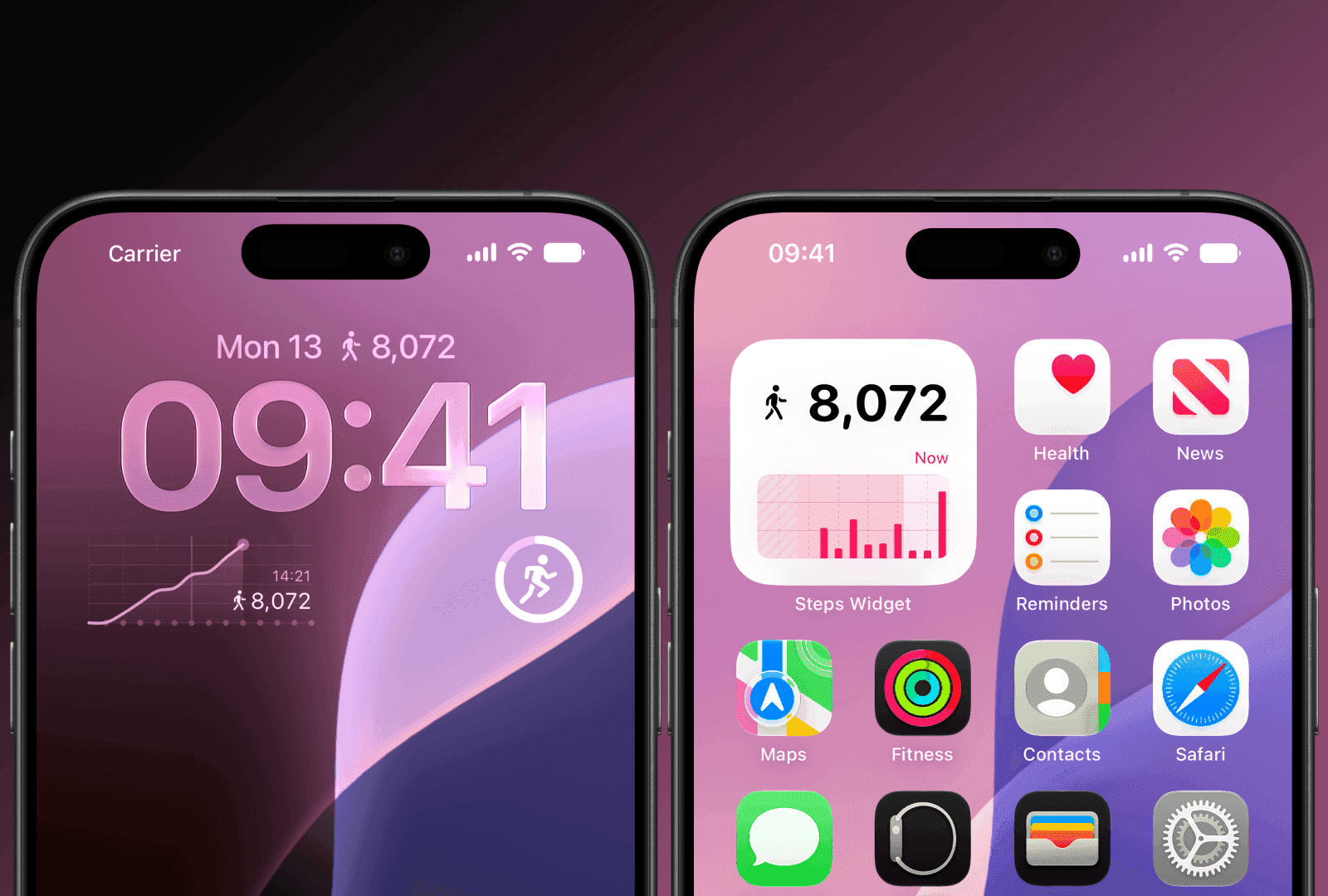
Styling is the one paid part of Steps. It changes how widgets look, not what the app does.
Where styling happens
In the app's main screen, swipe between widget types along the top. Each type has its own preview and its own saved style, so Steps Ring and Steps Timeline can look completely different.
Below the preview is the palette. Above it, the slider icon in the toolbar opens the display options for the selected widget.
Colour palettes
Each widget type offers three rows of styles:
| Row | What it is |
|---|---|
| Solid | System colour plus a set of single-colour treatments, including muted text tones |
| Two-tone | A primary and a secondary colour — the number in one, the ring or chart in the other |
| Gradient | A gradient background with light text, in themes like Sunrise, Meadow, Dusk, Aurora, and Ocean |
Gradients make the widget stand out. Solid colours let it blend into the Home Screen.
Display options
The slider icon opens options that apply to the selected widget:
Appearance — System, Light, or Dark. This is per widget, so a widget can stay dark on a light Home Screen.
Timestamp — how the "last updated" time reads. Three formats: a clock time, a relative time, or a relative time with wording.
Chart — on Steps Timeline, choose Line Chart or Bar Chart. The setting also applies to the Lock Screen and Apple Watch rectangular chart. See the section below.
Milestone — on the ring and progress widgets, marks milestone points along your progress.
There is also a sensitive mode that hides the number itself, for a widget you would rather not have readable by others.
Line Chart: the momentum view
The two chart modes plot different things, so the choice affects what you can read from the widget.
Bar Chart gives each hour its own bar. It shows when you moved during the day.
Line Chart plots your running total, so the line only ever climbs. What you read is the slope: a steep stretch is a walk, a flat stretch is time in the chair, and the overall curve shows your momentum through the day.
Note: The curve tracks the same trajectory the reminder model uses. The model projects where your day is heading; the line chart shows that trend on screen. A line that flattens through the afternoon is the point at which a reminder becomes likely.
Line Chart suits the Apple Watch Rectangular complication well. The slot is small and wide, which fits a single curve better than a row of narrow bars, and a smoothed line stays readable at a glance. The same applies to the iPhone Lock Screen rectangular widget.
Use Bar Chart when you want to check a specific hour, and Line Chart when you want the overall trend.
What the purchase covers
What is free and what is paid:
Free forever — goal reminders and every setting behind them, the on-device model and its training, reminder tone, the reminder schedule, your daily goal, Insight, Live Activity, the Apple Watch app, Motion Sensor, the step window settings, and a working widget on every surface.
Paid — additional widget styles, colours, and gradient themes.
No feature the app needs to function is behind the paywall. Without the purchase you still get the full reminder system and your step count on every surface. The purchase changes appearance only.
The Customization purchase
It is called Customization in the app and on the App Store, and it comes three ways:
- A one-time purchase that never expires
- A monthly subscription
- A yearly subscription
A subscription is never required — the one-time purchase unlocks the same thing permanently. Current prices are on the App Store listing; they are deliberately not printed here, because a stale price on a website is worse than no price.
Restoring a purchase
Purchases are tied to your Apple Account, not to an app account — Steps has no accounts. On a new device or after a reinstall, sign in with the same Apple Account and use the restore option in the app.
Buying on Apple Watch applies to your iPhone and vice versa. One purchase, not one per device.
Does changing style affect my data?
No. Styles are presentation only. Your steps live in Apple Health, so switching styles — or letting a subscription lapse — never costs you history. Widgets fall back to a standard style and keep showing the same numbers.
The app icon
Not a widget, but the same instinct: Settings › App Icon offers seven icons — Classic, Black, Blue, Green, Orange, Pink, and Purple.
Do styles sync to my other devices?
Yes, through your private iCloud. The Apple Watch keeps its own styles for its three accessory types, chosen on the wrist, and those sync back to the iPhone too. See Privacy and sync.
What to read next
- The widget gallery — what each widget shows.
- Apple Watch — styling from your wrist.
- Privacy and sync — how settings travel.
Was this page helpful?
Steps Widget projects your end-of-day step total on device and reminds you only when you are heading for a miss — with your Apple Health count on every screen you already look at.
See how it works